
How to Use ArduinoStudio
Short, numbered steps for each task, in the order most people need them. Every project has three stages, 1 Logic, 2 Wiring and 3 App, and runs in the preview before you plug anything in.
Start a project
Pick one of three ways in. You can switch later: every project, however it started, opens in the same editor.
- Sign inOpen app.arduinostudio.com and sign in with a free account. Your dashboard lists your projects. Want to look first? The live demo needs no account.
- From a templateOn the dashboard, open Build something useful for your day, pick a project and click Create project + app. More templates are under Utilities at the bottom of the sidebar, then Templates.
- With the AI BuilderClick + New Project. The new project opens on Describe your project: type what it should do and click Build it. Read Review this plan, then click Apply changes. Nothing changes until you apply. More in the AI Builder guide.
- From an empty canvasIn a new project, click or build it by hand — add a block under the AI box, and add blocks yourself as in the next section.
Logic: blocks that say what the board does
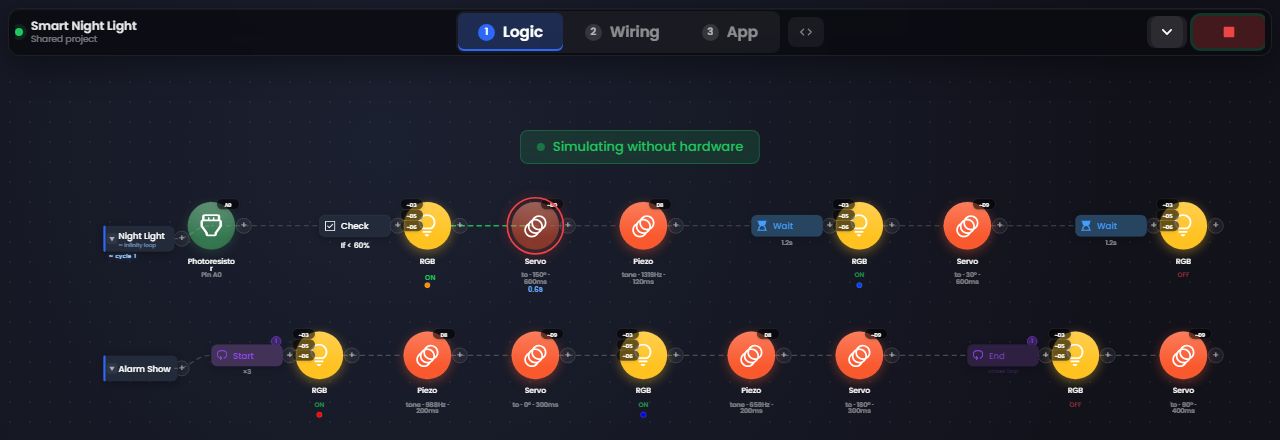
A sequence is one row of blocks, run from left to right. Click 1 Logic in the stage bar to see them. For a full first project, follow Getting Started.
- Add a blockClick the + at the end of a sequence. The Components tab has the parts (LED, Servo, Button and more); the Actions tab has Loop, Wait and Check.
- Connect itA new block joins the chain right after the block whose + you clicked, so the order on screen is the order it runs. To repeat blocks, add a Loop before them (it shows as Start; set how many times), then add another Loop after them and set its Type to End. Without an End, the loop repeats to the end of the sequence.
- Set a pinClick the block to open its settings, choose its Digital pin (sensors use Analog pin), set the other values and click Save.
- Play in the previewClick the green Play button at the top right. With no board connected the project runs in the preview and the canvas shows Simulating without hardware. The same button turns into Stop.
App: buttons and sliders that run your project
- Open the App stageClick 3 App in the stage bar. The canvas becomes your control panel.
- Add a button or a sliderClick Add element (the + in the elements panel), open Shapes and pick Button or Slider.
- Bind itSelect the element. For a button, under Run on interaction, tick the sequences that run On click. For a slider, choose its Pin: sliders offer only PWM (~) pins.
- Use itClick Play, then press your controls. Without a board the preview responds; with a board connected, the board does. Click Stop to edit again.
- Check it at phone sizeUse the Desktop / Phone switch to see the panel at phone size. Open standalone app opens the panel on its own page, the one you use on your phone.
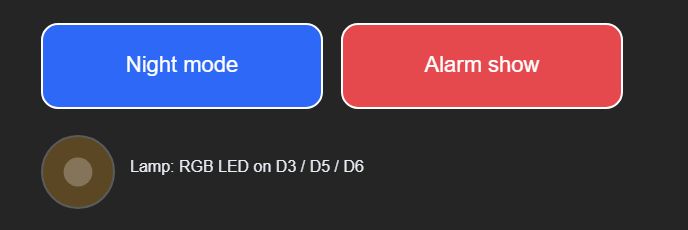
Every element and setting is on the App Builder page.
Wiring: build the circuit, then check it
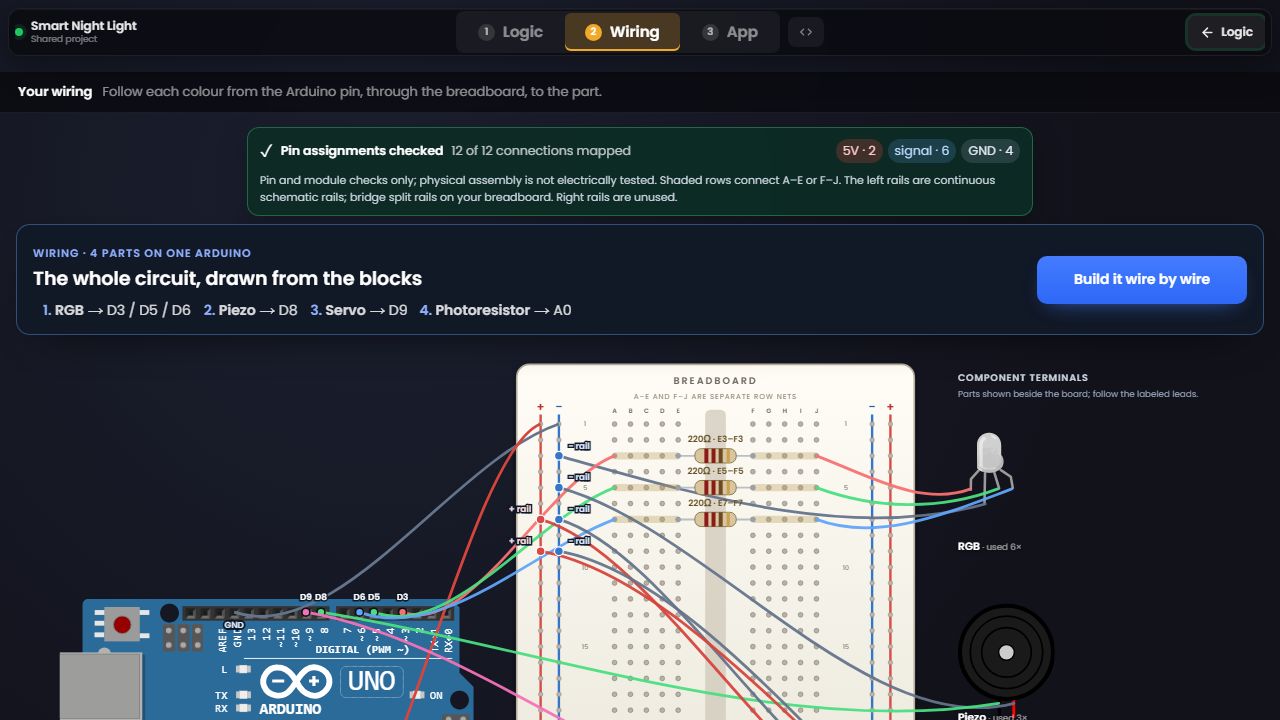
- Open the diagramClick 2 Wiring. The circuit is drawn from your blocks: each part, the pin it uses, and every wire through the breadboard. It changes when your blocks change.
- Follow it one wire at a timeFollow each colour from the Arduino pin, through the breadboard row, to the part. The summary above the diagram lists each part and its pin, for example Servo → D9.
- Learn it step by stepClick Build it wire by wire to place each wire yourself, with a hint when you need one.
- Check your real board with EyeBuildClick Check my real board, then Start camera (or Check a photo). Lay the board flat in good light with the whole board in the frame, and click Check my wiring. EyeBuild compares your breadboard with the diagram. It needs you to be signed in.
Photos for EyeBuild are sent to an AI service to be checked and are not saved. More in the Wiring guide.
Run it on a real board over USB
- Use Chrome or EdgeOn a computer or Chromebook, Chrome and Edge talk to the board over USB with nothing to install. On Firefox or Safari, use the Bridge.
- Plug in and pick the portConnect an Arduino Uno, Nano, Mega or an ESP32 with a USB data cable. Click the plug icon (Connections) in the toolbar, choose Cable (COM port), then Add a board…, and pick your board in the browser's port list.
- Install the firmware from the browser, onceA new board needs ArduinoStudio-FW. On an Uno, Nano or Mega click Upload ArduinoStudio-FW; on an ESP32 click Install ArduinoStudio-FW. Keep the cable in until it finishes. It replaces the sketch on the board, once per board.
- Press PlayClick Play. The same blocks that ran in the preview now run on your board.
Most blocks run over USB direct; a few need the Bridge on a real board. The components page says where each block runs, and Supported Boards lists every board and its firmware.
ESP32 over Wi-Fi
An ESP32 needs the cable only for its first setup. The classic ESP32 is tested on a bench; the ESP32-S2, S3 and C3 are supported but not yet tested on a bench. Only the blocks that run over USB direct run over Wi-Fi.
- Plug it in onceSign in, connect the ESP32 over USB and install ArduinoStudio-FW, as in the section above.
- Set up Wi-FiClick Set up Wi-Fi when the install finishes, or later open Connections and choose Wi-Fi. Pick your network under Networks nearby · 2.4 GHz and enter its password. The board is added to your account.
- Unplug itMove the board to any USB charger or power bank. The app shows Back online over Wi-Fi when it reconnects.
- Find it in My devicesOpen Connections, then My devices: your Wi-Fi boards, with Connect, rename and Remove. Press Play and the project runs on the board with no cable.
Use your app on your phone
- Sign in on your phoneOpen app.arduinostudio.com on the phone and sign in with the same account. Tap Open app under Continue where you left off on your dashboard, or open the link you copied from Open standalone app or Share.
- Connect your saved boardTap Connections; the boards you set up are in My devices. Keep the board powered and the app open: timers and live control stop if the session ends. First-time Wi-Fi setup needs the USB cable and a desktop browser.
- Add it to your home screenTap Use on my phone for the steps. On iPhone, use Safari's Share menu, then Add to Home Screen. On Android, use your browser's Install app or Add to Home screen option.
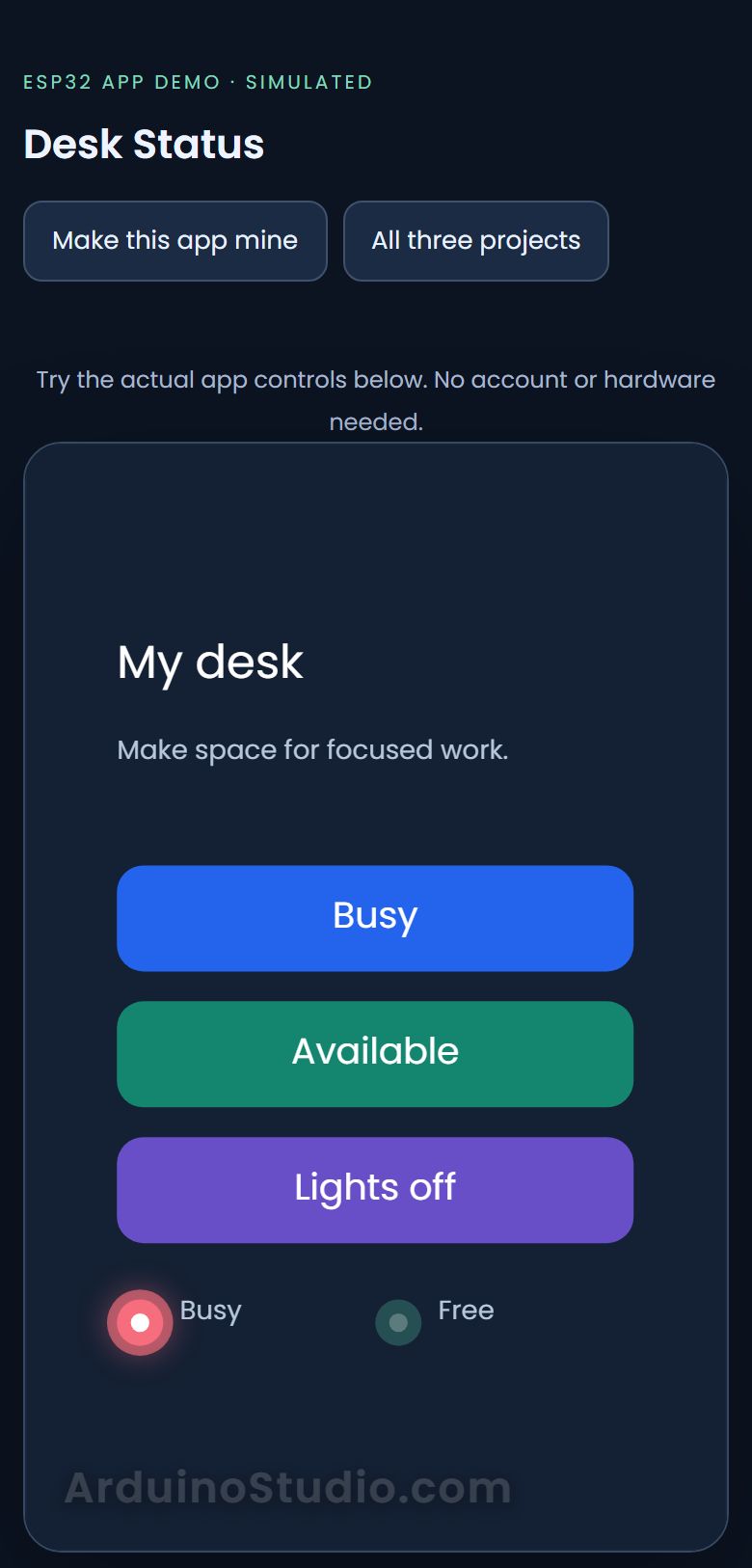
- Share itTap Share app to send the link. A board belongs to the account that set it up: people you share with can open the app and its preview, and connect a board of their own, but sharing never gives them your board.
Share and remix
- Make it publicClick the arrow on the project's tab at the top of the window (Project settings) and choose Public. A Private project opens only for the people you invite.
- Share the linkClick Share in the editor toolbar, then Copy Link, or send it straight to WhatsApp, Email and more.
- What people seeThe project opens running in the preview. In 3 App its controls are live, so people can press them straight away.
- Remix itTo change someone else's project, click Clone (or Edit this app in the App stage). The copy is yours to edit and counts as one of your projects.
Troubleshooting
The board is not found
- Check the browser and the cableUse Chrome or Edge, and a USB data cable: a charge-only cable powers the board but never shows a port.
- Free the portClose other programs that use the board, such as the Arduino IDE's Serial Monitor, then unplug the board, plug it back in and click Add a board… again.
- Answer the board questionMany clones share one USB chip. If the app asks Which board is this?, pick yours.
- Reset an ESP32 that will not answerIf the install asks for it, follow Hold BOOT, tap RESET: hold BOOT, tap RESET (it may be labelled EN or RST), let go of BOOT, then pick the board again.
The ESP32 does not join Wi-Fi
- Use a 2.4 GHz networkAn ESP32 only uses 2.4 GHz Wi-Fi. On an iPhone hotspot, turn on Maximize Compatibility.
- Check the passwordPassword didn't work means the network refused it: enter it again. Wi-Fi that asks for a user name (work or school) is not supported yet.
- Try a phone hotspotSome school and hotel networks block devices. If the board joins but cannot reach ArduinoStudio, use a phone hotspot.
The AI is busy
- Wait a minuteThe AI is busy right now, try again in a minute. Your project has not changed. Send the same request again after a minute.
- Send fewer requestsYou can send up to 6 requests a minute.
- Keep buildingEverything the AI builds, you can build by hand with the same blocks: see the Logic steps above.
Still stuck? Read the FAQ, or use Report at the top of the app to tell us what happened.